Showing posts with label up. Show all posts

Speed Up Windows XP

| 0 comments |
Sometimes we are annoyed if Windows that we use slow even it take more time for waiting, problems like this are very often we find when we are operating computer. If you are one person who experienced it maybe you  should try these steps below to overcome that problem. These are the steps :

First
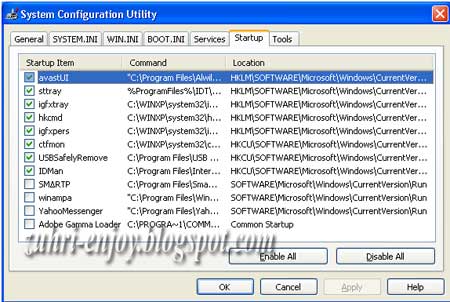
Subtract running program on Start up by clicking Start - RUN - Type Msconfig - Startup > unchecked programs that are not too important 

Second
less time to wait in the registry editor by clicking Start - Run - Regedit 
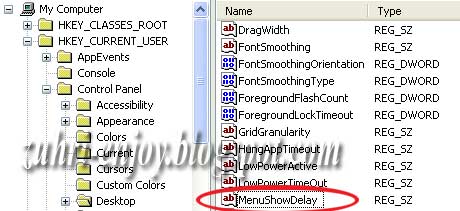

- choose HKEY_CURRENT_USER - Control Panel - Desktop
- looking for MenuShowDelay  at the right side and double click it then change the value with 0
- looking for WaitToKillAppTimeout under MenuShowDelay then change the value with 100
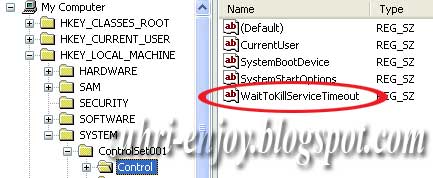

- Choose HKEY_LOCAL_MACHINE at the left side - System - Controlset001/Controlset002 - Control
- Double click WaitToKillServiceTimeout then change the value with 100
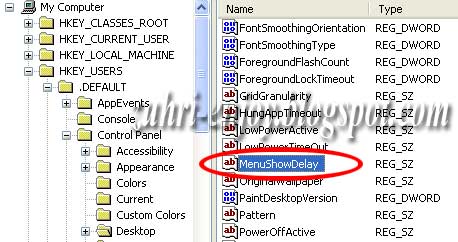

- Choose HKEY_USERS - DEFAULT - DESKTOP
- at the right side find and double click MenuShowDelay then change the value with 0
- looking for WaitToKillAppTimeout under MenuShowDelay then change the value with 100

Third
- reduce the use of visual effect by right clicking My Computer - Properties - Advanced
- in part Performance click setting - visual effects - unchecked all visual effects except three choice at the bottom
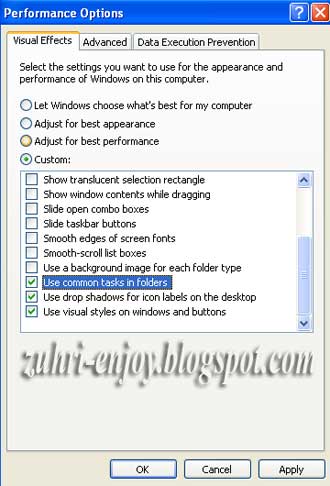

good luck and hopefully useful...............
Read More..

How To Back Up Your Computer Files And Data

| 0 comments |
There are different ways through which you can back up your computer data and they all have their advantages and disadvantages. The safest ways to back up your data are through hard drives, DVD or flash drives and cloud storage.

1. Back Up Using Hard Drives
There are different shapes and sizes of external USB hard drives available in the market, some of them require power source from the mains while most take power from the USB port. Using hard drive to back up data is the easiest and cheapest method of backing up data. All you have to do is just copy and paste your data from the internal hard drive inside the laptop to the external hard drive connected to the laptop through the USB port.

Using hard drive to back up data is not 100% fool proof, it is still vulnerable to theft, damage and data corruption. Apart from the copy and paste method of backing up data to hard drives, the more efficient method is to make use of Windows inbuilt back up utility. To use this, just press the Windows key on your keyboard and type back up, if you are using Windows 7, click click the Back up and Restore link that appears.

2. Back Up Using DVDs And Flash Drives
Memory cards, DVDs and flash drives are common devices that most people are familiar with. They are portable, easy to use and above all cheap, if your computer has a DVD RW drive, then you can buy empty DVDs and burn any information you want into it. On the alternative you can make use of flash drives or memory cards, if you are using memory cards, you must insert it into a card reader before connecting to your computer.

After connecting either the flash drive or memory card to your computer, you can then go ahead and copy all the important files and folders that you want to back up from the computer and pad paste into the flash drive or memory card. This method is a cheap and very affordable way to back up data but it is prone to damage, data corruption and theft, hence it is not 100% reliable as well.

3. Back Up Using Cloud Storage
Cloud storage is the most expensive but safest method of backing up data, cloud storage is a process of entrusting all your documents, files and folders to a storage provider’s servers over the internet. They offer a very secure online alternative for backing up data, some of the best known cloud storage services are Drop box, Microsoft SkyDrive and Google Drive. Cloud storage is not vulnerable to damage, theft or data corruption like the other methods. Its only advisable to use this method if you have very large files, folders or documents to back up because of the cost involved. But some of the storage providers still offer free services, for example Microsoft SkyDrive offers 7GB of storage to everyone for free and above that, you are charged a fee.
Read More..